
Your viewers request songs with channel points or a chat command – CueUp finds them and puts them in your Spotify queue. If anything goes wrong, they get their points back automatically.
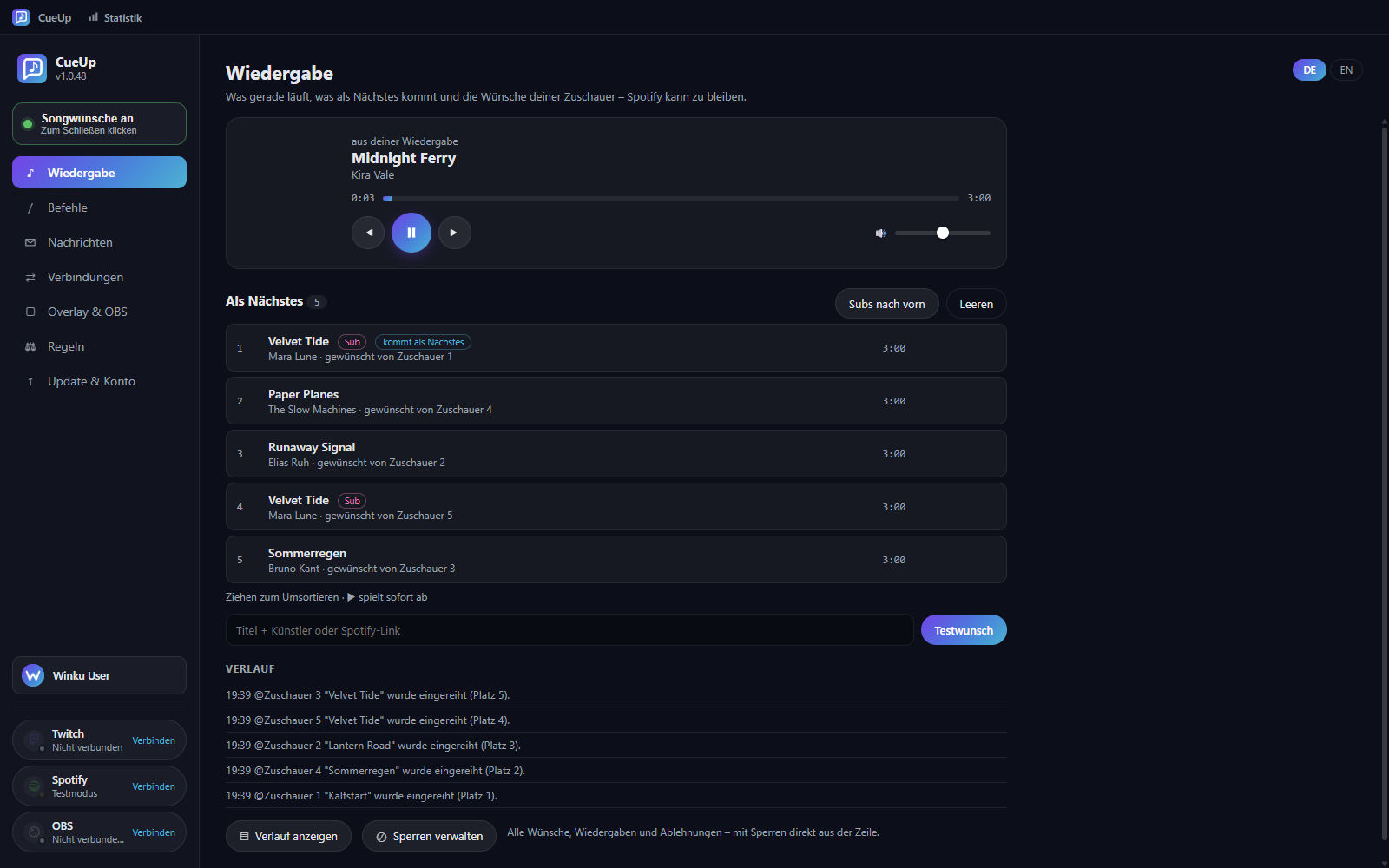
Song requests from your chat, straight into your Spotify queue
Viewers redeem a reward or type a command like !sr in chat. CueUp recognises the track – a Spotify link works too. Both routes can be switched on and off separately.
The song goes into your Spotify queue automatically when its turn comes. No copying, no switching windows.
Track not found, no active playback device, no Premium? The redemption is rejected, the points are returned automatically – with a clear reason in chat.
Per-viewer cooldown, maximum length, queue limit, block lists for songs, artists and viewers, explicit-content filter.
Shows title, artist, cover art, progress and who requested the song. Set up in OBS with one click.
Shows viewers what is playing and what comes next – in the Twitch app too. The panel is display only: it plays nothing and controls nothing. You choose what is shown, with a live preview. The Twitch extension for it is currently under review by Twitch.
Open or close requests, skip, block a song or a viewer – with one press. Every key shows live what is playing and can be styled freely.
Optionally the music runs on its own audio track that stays out of the recording – so your VOD doesn't get muted.
Who requests what, how much music played and what got rejected – including the most popular songs and artists.
Every request traceable, and songs, artists or viewers can be blocked straight from the row – and unblocked just as easily.
| v1.0.56 12.09.2026 |
CueUp-Setup-1.0.56.exe · 120,5 MB Herunterladen What changed
|
| v1.0.55 12.09.2026 |
CueUp-Setup-1.0.55.exe · 120,5 MB Herunterladen What changed
|
No reviews yet – be the first to review CueUp.
 Twitch-Panel unter deinem Stream: was läuft und was als Nächstes kommt – mit Live-Vorschau
 Stream Deck: Tasten für Wünsche, Überspringen und Sperren – jede Taste mit eigenem Aussehen
 Chat-Befehle wie !sr mit eigenem Präfix und Rechten je Befehl
 Overlay für OBS mit Vorschau und eigenem Gestalten-Fenster
 Statistik: wer wünscht sich was, wie viel läuft und was abgelehnt wurde
 Verlauf aller Wünsche und Wiedergaben – sperren direkt aus der Zeile
 Moderationsregeln: Wartezeiten, Höchstlängen und Sperrlisten
 Einrichtung in fünf Schritten: Twitch, Spotify, Kanalbelohnung und OBS
One click, no key to type. CueUp creates the channel point reward for you – or you pick an existing one.
Guided setup with ready-to-paste values. CueUp checks the connection right away and tells you what is missing.
Cooldowns, block lists and chat commands the way you want them – plus overlay, Twitch panel and Stream Deck.
Requests come in automatically. The window shows the queue and you can step in at any time – or right from your Stream Deck.
Free · Windows installer · SHA256-verified and digitally signed.
For advanced users: the file’s checksum must match exactly — this confirms the download is unchanged.
94a7ff0dcc43edc2e2cde666c313c1e7634723d01b60a01420b8ae85f42e3c87Verify on Windows (PowerShell): Get-FileHash "CueUp-Setup-1.0.60.exe" -Algorithm SHA256
CueUp is free. You do need Spotify Premium though – without it Spotify does not allow queue control.
The interface used to queue tracks is reserved for Premium accounts. Without it Spotify refuses, and CueUp returns the channel points automatically.
Yes. Requests also work through a chat command. Both routes can be switched on and off separately.
The redemption is rejected, the points go back to the viewer, and chat shows the reason – for example that the track could not be found.
In VOD-safe mode the music runs on a separate audio track that is excluded from the recording. One step stays with you: in OBS under Settings → Output (Advanced), set the Twitch VOD track to track 2 – CueUp tells you so when you switch it on. Alternatively CueUp logs the tracks played so you can document them later.
Yes, signing in is required. In return your settings are the same on every computer and updates arrive on their own.
Playback runs entirely on your Windows PC: search, queue, overlay and moderation need no server. Your Twitch, Spotify and OBS credentials stay encrypted on your machine and are never sent to Winku – nor are your block lists or your history. What goes to your account: your settings, so they are the same everywhere, and usage figures – requests, plays, play time and the most popular songs. One exception is up to you: if you switch on the Twitch panel, CueUp sends winku.de what the panel should show – the current song, the next requests and, only if you allow it, who requested them. Switching it off deletes it there.
The CueUp extension is currently under review by Twitch. Once it is approved, switch on the Twitch panel in CueUp under “Overlay & OBS” and add “CueUp” as a panel under Extensions in your Twitch Creator Dashboard. All steps: winku.de/cueup/twitch-panel
No, everything works in the window too. If you have one, CueUp sets up the plugin with one click and you design the keys yourself.
CueUp is an independent program and is not affiliated with Twitch, Spotify or OBS. It is neither endorsed, reviewed nor sponsored by these providers. The names and trademarks mentioned belong to their respective owners and are used here only to describe which services CueUp works with.


